
Apple Mail enforces strict email authentication to ensure emails are legitimate and secure. It uses SPF, DKIM, and DMARC protocols to verify sender identity, prevent tampering, and block phishing attempts. Starting in 2024, these standards became mandatory for bulk senders, making proper configuration essential for email marketers.
Key Points:
- SPF: Verifies sending server IPs against authorized domains.
- DKIM: Confirms email integrity with digital signatures.
- DMARC: Aligns "From" addresses with SPF/DKIM and enforces policies (e.g., reject or quarantine).
- BIMI: Displays brand logos for verified senders with strong DMARC policies.
- Strict Enforcement: Apple Mail rejects unauthenticated emails and has no allow list, requiring precise setup.
Common Issues:
- Exceeding SPF’s 10 DNS lookup limit.
- Misconfigured DKIM records or selectors.
- Incorrect DMARC alignment or policies.
Solutions:
- Monitor and test configurations using tools like MailMonitor.
- Start DMARC with
p=noneto analyze traffic before enforcing stricter policies. - Ensure all sending domains are aligned and DNS records are accurate.
Properly configured authentication not only prevents email rejection but also improves deliverability and protects your domain from spoofing.
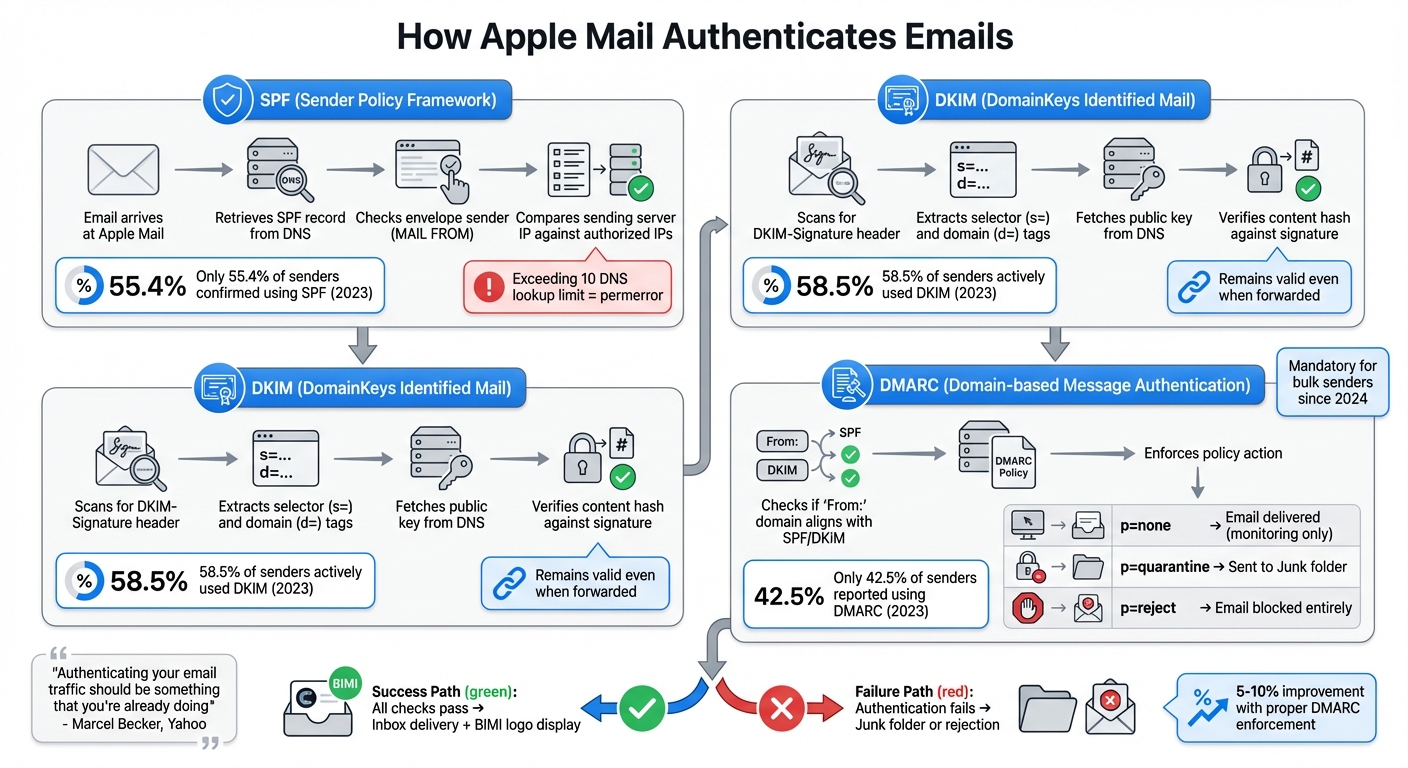
How Apple Mail Authenticates Emails: SPF, DKIM, and DMARC Verification Process
How Apple Mail Processes SPF
Apple Mail checks the sender’s SPF record by retrieving it from the DNS. It uses the envelope sender (MAIL FROM or bounce address) and compares the sending server’s IP against the list of authorized IP addresses [2].
Understanding SPF Checks in Apple Mail
Apple Mail takes SPF validation a step further by thoroughly analyzing key mechanisms like ip4, ip6, and include. It also evaluates qualifiers such as "+" (pass) and "-" (fail). Email Service Providers like SendGrid, Mailchimp, and Amazon SES require the include mechanism to be part of the SPF record [4].
For Apple’s Private Email Relay, the domain registered must align with the envelope sender. If it doesn’t, the SPF check will fail [4].
Common SPF Errors and Their Impact
One common issue is exceeding the 10 DNS lookup limit, which often happens when multiple third-party include statements are used. This results in a permerror that causes authentication to fail [5].
Other pitfalls include having more than one SPF record for a domain or relying on the outdated and unreliable ptr mechanism. Additionally, if SPF validation fails and your domain has a DMARC policy in place, iCloud Mail will enforce that policy, which could lead to emails being quarantined or rejected [2].
A 2023 survey revealed that only 55.4% of senders confirmed using SPF, while 31.8% were unsure whether their emails were authenticated. This highlights a major gap in email security [3].
DKIM Signature Verification in Apple Mail
Apple Mail relies on DKIM to confirm email integrity and verify sender authenticity. iCloud Mail servers handle DKIM authentication for all incoming emails, ensuring that the sender is legitimate and the message content hasn’t been altered [9].
How Apple Mail Validates DKIM
When an email arrives, Apple Mail scans for the DKIM-Signature header. It uses the selector (s=) and domain (d=) tags to fetch the public key from [selector]._domainkey.[domain]. From there, it verifies the email’s content hash against the decrypted signature. If the two match, the email’s integrity is confirmed [3][10].
| DKIM Tag | Description | Role in Apple Mail Verification |
|---|---|---|
| d= | The domain responsible for the email | Used to check alignment with DMARC policies |
| s= | The selector identifying the public key | Critical for DNS lookups and validation |
| bh= | Hash of the email’s body | Ensures the content hasn’t been altered |
| b= | Signature hash of the headers | Confirms the sender’s identity |
Failures in verification often stem from issues like misconfigured DNS records, mismatched selectors, or header modifications during forwarding [5][6].
This robust verification process is essential for maintaining sender reputation and ensuring successful email delivery.
Impact of DKIM on Email Campaigns
DKIM verification is a cornerstone of email authentication, directly affecting sender reputation and inbox placement. In 2023, a survey revealed that 58.5% of email senders actively used DKIM, while over 30% were unsure if their emails were authenticated. This lack of awareness is concerning, as major providers now require DKIM for bulk email senders starting in 2024 [3].
"Authenticating your email traffic should be something that you’re already doing if you care about the health of your email traffic as well as your infrastructure."
– Marcel Becker, Senior Director of Product, Yahoo [3]
For users of iOS 16, iPadOS 16, and macOS Ventura 13 or newer, successful DKIM and DMARC verification also unlocks BIMI support. To maintain security, it’s recommended to rotate keys every 6–12 months and use RSA keys with a strength of at least 2,048 bits [7][3][8].
Unlike SPF, DKIM signatures generally remain valid even when emails are forwarded, making it a more dependable method for authenticating emails that pass through intermediaries [3]. Additionally, using relaxed canonicalization (c=relaxed/relaxed) ensures that minor formatting changes won’t invalidate your DKIM signatures [10].
DMARC Policy Enforcement in Apple Mail
Apple Mail builds on SPF and DKIM checks by enforcing DMARC to ensure that the domain in your "From:" address aligns with authenticated domains. For every incoming iCloud email, Apple Mail applies the DMARC policy you’ve published, ensuring your domain’s security measures are respected[2].
How DMARC Works in Apple Mail
DMARC verification kicks in after SPF and DKIM checks are completed. Apple Mail checks whether the domain in your "From:" header matches the domains authenticated by SPF and DKIM[1][4]. If both protocols pass and align with the "From:" domain, the email successfully clears DMARC authentication.
Apple Mail enforces your DMARC policy based on the following actions:
| DMARC Policy | Apple Mail Action | Result |
|---|---|---|
| p=none | No enforcement action | Email is delivered as usual for monitoring purposes |
| p=quarantine | Message flagged | Email is sent to the recipient’s Junk folder |
| p=reject | SMTP transaction refused | Email is blocked entirely, and the sender receives a bounce notification |
Since July 2, 2018, Apple has enforced a p=quarantine policy for its own domains, including mac.com, me.com, and icloud.com[2][12].
Benefits of Proper DMARC Configuration
A well-configured DMARC policy helps protect your domain from spoofing and boosts email deliverability. Despite its importance, only 42.5% of email senders reported using DMARC in 2023, and 38.8% were unsure if they had it configured at all[3]. This gap leaves many domains vulnerable to abuse and phishing attacks.
"The end goal is ideally a policy of p=reject. That’s what DMARC is for. Ensuring that your domain cannot be spoofed and protecting our mutual customers from abuse."
– Marcel Becker, Senior Director of Product, Yahoo[3]
In addition to security, DMARC also enables BIMI (Brand Indicators for Message Identification) in Apple Mail on devices running iOS 16+ and macOS Ventura 13+. To display your brand logo via BIMI, your DMARC policy must be set to p=quarantine or p=reject[7][3].
To implement DMARC effectively, start with a p=none policy. This allows you to monitor email traffic through aggregate reports (using the rua tag) without taking enforcement actions. Once you’ve identified all legitimate sending sources and confirmed that SPF and DKIM align with your "From:" domain, you can gradually move to stricter policies like p=quarantine and eventually p=reject. This step-by-step approach minimizes the risk of blocking legitimate emails while fine-tuning your setup[11][3].
Up next, we’ll explore how authentication failures affect inbox placement.
sbb-itb-eece389
Impact of Authentication Failures on Inbox Placement
How Apple Mail Handles Unauthenticated Emails
Apple Mail is known for its strict stance on email authentication. If an email fails SPF, DKIM, or DMARC checks, Apple follows the DMARC policy set by your domain. For instance, if your policy is set to p=quarantine, the email goes straight to the recipient’s Junk folder. On the other hand, a p=reject policy results in the email being blocked entirely, triggering an SMTP error and a bounce notification[2].
For bulk email senders, meeting all three authentication standards – SPF, DKIM, and DMARC – is a must. Failing to comply leads to emails being outright rejected[2].
Apple’s Private Email Relay service, often used with "Sign in with Apple", enforces even stricter rules. Emails sent through this service must pass either SPF or DKIM checks. To prevent immediate bounces, ensure all outbound domains are registered in your Apple Developer account[4]. Additionally, Apple Mail employs automated junk detection systems that flag unauthenticated emails as spam[2].
Resolving these issues quickly is key to maintaining proper email delivery.
Steps to Resolve Authentication Issues
To address these failures, start by reviewing SMTP error logs. These logs often include diagnostic URLs that can help pinpoint the root cause of authentication problems[2]. In Apple Mail, check the full email headers for spf=pass, dkim=pass, and dmarc=pass entries under the Authentication-Results section[1][13].
Make sure your "From:" domain aligns with the domains authenticated by SPF and DKIM. Avoid exceeding the 10 DNS lookup limit, as this can cause authentication issues[14][13]. If your email service provider uses its own domain for bounce handling, configure a custom return-path to maintain SPF alignment[14].
For persistent delivery problems, reach out to Apple’s postmaster team at [email protected] with your domain details and relevant SMTP errors[2]. If you’re using Apple’s Private Email Relay, ensure all outbound domains and subdomains are registered under the "Certificates, Identifiers & Profiles" section of your Apple Developer account[4].
Testing Apple Mail Authentication with MailMonitor
After addressing authentication failures, the next logical step is testing your configurations to ensure everything is working as intended.
How MailMonitor Supports SPF, DKIM, and DMARC Testing
Apple Mail doesn’t provide a feedback loop or allow list, which makes monitoring email authentication a challenge. This is where third-party tools like MailMonitor come into play[15][2].
MailMonitor gives you real-time insights into the status of your emails – whether they land in the iCloud/Apple Mail primary inbox, get flagged as junk, or are outright rejected[15][2]. It checks that your SPF and DKIM records meet Apple’s strict requirements for Private Email Relay. For example, Apple mandates that the DKIM domain (d= value) must exactly match the domain in your "From:" header[4][15].
Additionally, MailMonitor tracks your domain’s email activity, identifying which services are sending emails on your behalf and flagging those that fail authentication[16]. It also keeps an eye on SPF record limitations, warning you if you’re nearing the 10 DNS lookup cap – a common cause of authentication failures[16]. These tools help ensure your emails are properly configured and improve your chances of reaching the inbox.
Enhancing Deliverability with MailMonitor Insights
MailMonitor also verifies that your authentication aligns with Apple’s DMARC enforcement policies, including their default p=quarantine setting for iCloud domains[2].
Conclusion
Apple Mail’s authentication process hinges on correctly configuring SPF, DKIM, and DMARC to ensure emails avoid being flagged as junk or outright rejected[2]. As Marcel Becker, Senior Director of Product at Yahoo, explains:
"Authenticating your email traffic should be something that you’re already doing if you care about the health of your email traffic as well as your infrastructure."[3]
Getting these configurations right doesn’t just prevent rejection – it can also lead to better deliverability. For instance, enforcing DMARC policies has been shown to improve delivery rates by 5–10%[13]. However, the journey to enforcement can be tricky, with around 75% to 80% of domains publishing DMARC records failing to progress beyond p=none due to setup errors[13].
Key Takeaways for Email Marketers
To improve your email deliverability, focus on these critical steps:
- Begin with monitoring mode (
p=none) to identify all legitimate email sources before transitioning to enforcement. - Double-check that your SPF and DKIM domains align perfectly with your "From" header – this is crucial for Apple’s Private Email Relay[4].
- Make sure your SPF DNS lookups stay within the limit of 10[13].
Using tools like MailMonitor can simplify the process by providing real-time authentication insights, tracking sender reputation, and flagging issues before they impact deliverability. Since Apple now mandates enforced DMARC policies for features like Branded Mail[17][18], ensuring proper email authentication is more important than ever – not just for better inbox placement but also to safeguard your domain against spoofing.
FAQs
How does Apple Mail handle SPF, DKIM, and DMARC protocols?
Apple Mail relies on three key protocols – SPF, DKIM, and DMARC – to ensure secure and reliable email delivery. These protocols help verify the authenticity of emails and protect users from phishing and spoofing attempts. Here’s a quick breakdown of how each one works:
- SPF (Sender Policy Framework) checks if an email is sent from an authorized server by verifying the sender’s IP address. This prevents unauthorized servers from sending emails on behalf of a domain.
- DKIM (DomainKeys Identified Mail) attaches a digital signature to emails, ensuring their authenticity and confirming they haven’t been tampered with during transit.
- DMARC (Domain-based Message Authentication, Reporting, and Conformance) builds on SPF and DKIM by defining how to handle emails that fail authentication. It enforces policies to block fraudulent messages and provides reports to domain owners.
By incorporating these protocols, Apple Mail ensures that emails are authenticated properly, reducing the chance of fraudulent messages and improving the chances of legitimate emails reaching the inbox.
How can I make sure my emails meet Apple Mail’s authentication requirements?
To make sure your emails pass Apple Mail’s authentication checks, you need to correctly configure SPF, DKIM, and DMARC protocols for your domain. These tools help confirm your emails are genuine and protect against spoofing attempts.
- SPF: Set up your SPF record to list the servers allowed to send emails on behalf of your domain. This step tells email providers which sources are trustworthy.
- DKIM: Add DKIM to include a digital signature in your emails, ensuring they haven’t been tampered with during transit.
- DMARC: Configure DMARC to align the results of SPF and DKIM. It also lets you decide how email providers should handle messages that fail authentication.
By completing these steps, you’ll boost your email deliverability and increase the chances that your messages reach the inbox instead of the spam folder.
How does a failed DMARC check affect email deliverability in Apple Mail?
A failed DMARC check can cause serious issues with email deliverability in Apple Mail. If the DMARC policy isn’t set up properly, your emails might get flagged as spam or even rejected outright, making it harder for them to land in the recipient’s inbox.
To improve deliverability, it’s crucial to configure DMARC correctly and pair it with SPF and DKIM protocols. Together, these measures help confirm your email’s authenticity and increase its chances of being delivered successfully.

